



Transactions may appear missing because an account was not selected, filters hide the record, a purchase is pending, the import is unfinished, or a connection needs attention. Start with Accounts, Transactions filters, and Settings > Connections before reconnecting or comparing monthly spending.
Is the import still running?
Are filters hiding the purchase?
Is the transaction still pending?
You connect your bank account, open the dashboard, and something looks off. The balance is there, but the transactions aren't. Or a purchase you can see in your bank app hasn't appeared in your spending breakdown.
There are a few things that can cause this. The import might still be running, a filter might be hiding the purchase, or the transaction might still be pending. A connection that needs attention can also stop new activity from arriving.
Before reconnecting anything, check where the records are missing and what the app says about the connection. Here's how to work through it in Nora.
First, check which account you're looking at
Connecting a bank and including every account at that bank aren't necessarily the same thing. The card you made the purchase with might not be among the accounts you selected during setup.
Open Accounts in Nora and look for the relevant account or card. Then open Settings > Connections to review the connection it belongs to.
If the card is missing, review your account selection through the connection steps Nora offers. Institution and account availability depend on what your bank and connection provider support. Don't assume that a connected chequing account also gives Nora the purchases from a separate credit card.
Also check any account filter on the page you're using. A purchase can be stored in Nora but absent from a view restricted to another account.
Check the dates, currency, and filters
A transaction can look missing when it's simply outside the view you've selected. This is worth checking before doing anything more involved.
In Transactions, review the selected dates and any account, merchant, category, amount, or status filters. Clear the ones you don't need and search for the purchase again. You can search by merchant name or description; an unfamiliar bank description may not match the shop name you expected.
Look at the currency too. Nora keeps spending totals separate by currency, so a USD purchase won't be part of a CAD category total.
The transaction's date matters as well. Compare the date shown in Nora with the dates covered by the view. A calendar month and a card statement period may cover different activity.
If you find the transaction in the list but not in a chart, compare the chart's rules with the list's filters. Nora's Home spending card and merchant/category rankings count posted expenses and exclude pending activity and transfers. The transaction list can show a wider set of records.
A pending purchase may not be part of the spending total yet
If you made the purchase recently, check whether your bank still marks it as pending.
Nora's spending rankings use posted expenses. A pending purchase can therefore be visible in the transaction list, where available, without being included in those totals yet.
Bank transaction records can also change as they are processed. Plaid describes additions, modifications, and removals as part of transaction updates, so the records available to an app aren't a permanently fixed copy of what appeared earlier. Plaid's transaction documentation
For a purchase you think is missing, compare its account, date, amount, and status. Don't count a pending record and its posted replacement as two purchases, or assume every similar-looking pair is a duplicate.
Check the record before the chart
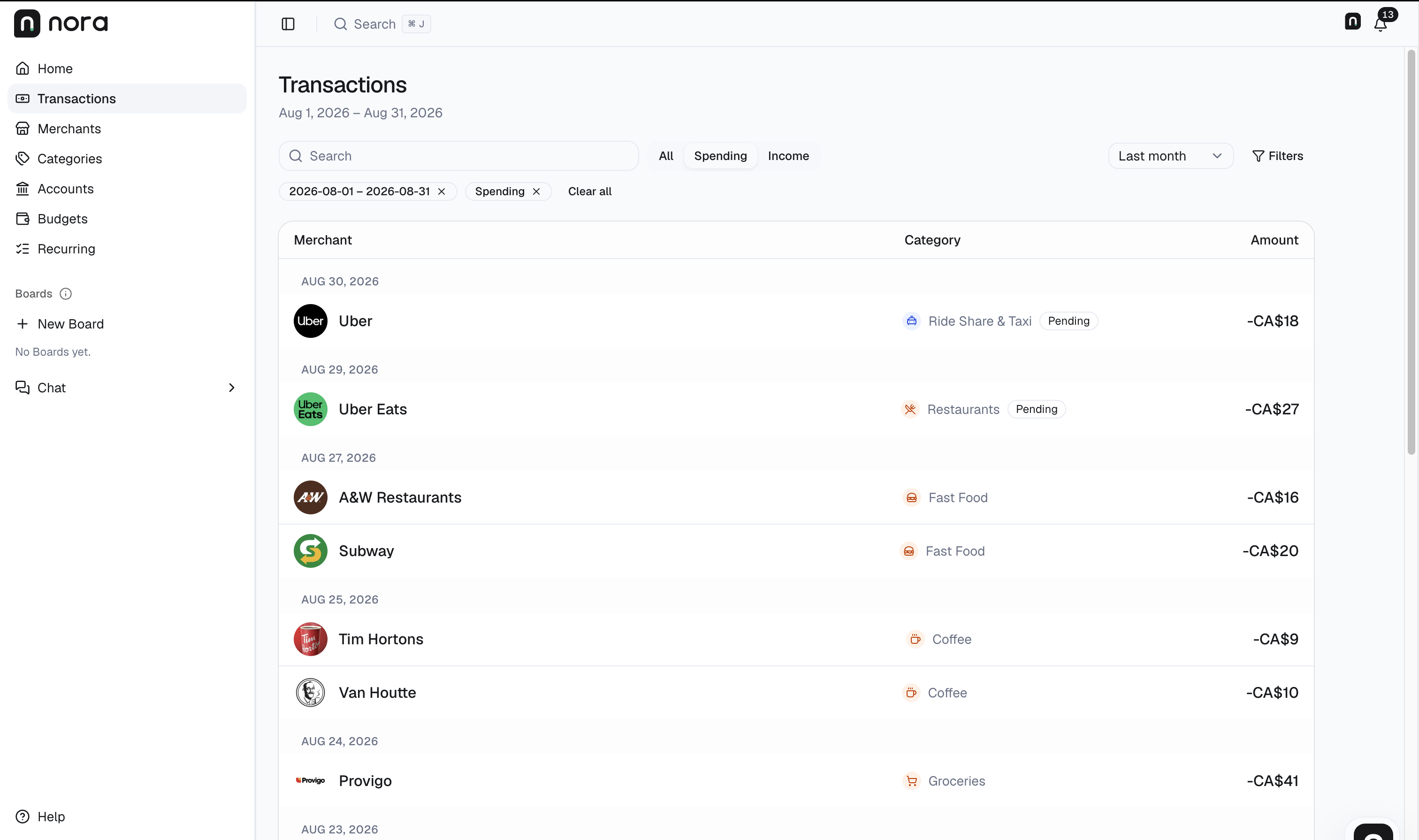
Nora transaction view captured on September 12, 2026. Interface shown in English.
- Match the period. This view is August 1–31. A record outside your selected dates will not appear in that view.
- Match the currency. CA$ means CAD. A different currency belongs in its own review.
- Read the status. Uber Eats on August 29 is pending. A visible pending record does not belong in a posted-only spending total. These visible rows do not establish complete monthly history.
The initial import may still be running
This is especially relevant just after connecting a bank.
Nora adds your bank accounts before their available transaction history has finished importing. You can see a balance while the system is still waiting for historical transactions or adding them to your records.
Open Settings > Connections and read the current phase. Nora shows a percentage after fetching the available history, during the stage that adds the transactions. The absence of a percentage earlier in the process doesn't, by itself, establish that the import failed.
The first few transactions arriving doesn't establish completion either. Check the connection's import status rather than judging it from one populated dashboard card.
If bank update emails are enabled, Nora sends a completion email after the transactions have been added. You can also check the status in the app without relying on email.
When the connection is waiting for provider data or still importing, wait and refresh the view later. If Nora offers a retry action for that connection, use that action. There isn't one fixed waiting time that applies to every bank and account.
Available history may be shorter than you expected
An import can finish successfully and still contain less history than you'd hoped for. Completion means the available history was imported; it doesn't prove that every past transaction from your bank is available.
Plaid's initial history request is configurable, and ongoing records build up while an account remains connected. That makes a universal promise about how many months every account contains misleading. How Plaid transaction history works
Check the dates of the records actually present in Nora. Some accounts may provide balances without transaction history at all. Seeing no transactions in that case is different from a failed import.
This matters when you compare months. Consider this comparison:
| Month | Records available | Recorded spending, CAD |
|---|---|---|
| August | Complete month for the accounts reviewed | 1,000 |
| September | Only September 15 through September 30 | 300 |
A connected AI assistant can review the records you have approved and report the limits returned by Nora. It cannot recreate missing bank history or repair a connection. Check the import state directly in Nora too.
Review my August and September 2026 spending in CAD. State the reported coverage limits and say whether the data supports a full-month comparison. Do not treat missing data as zero spending.
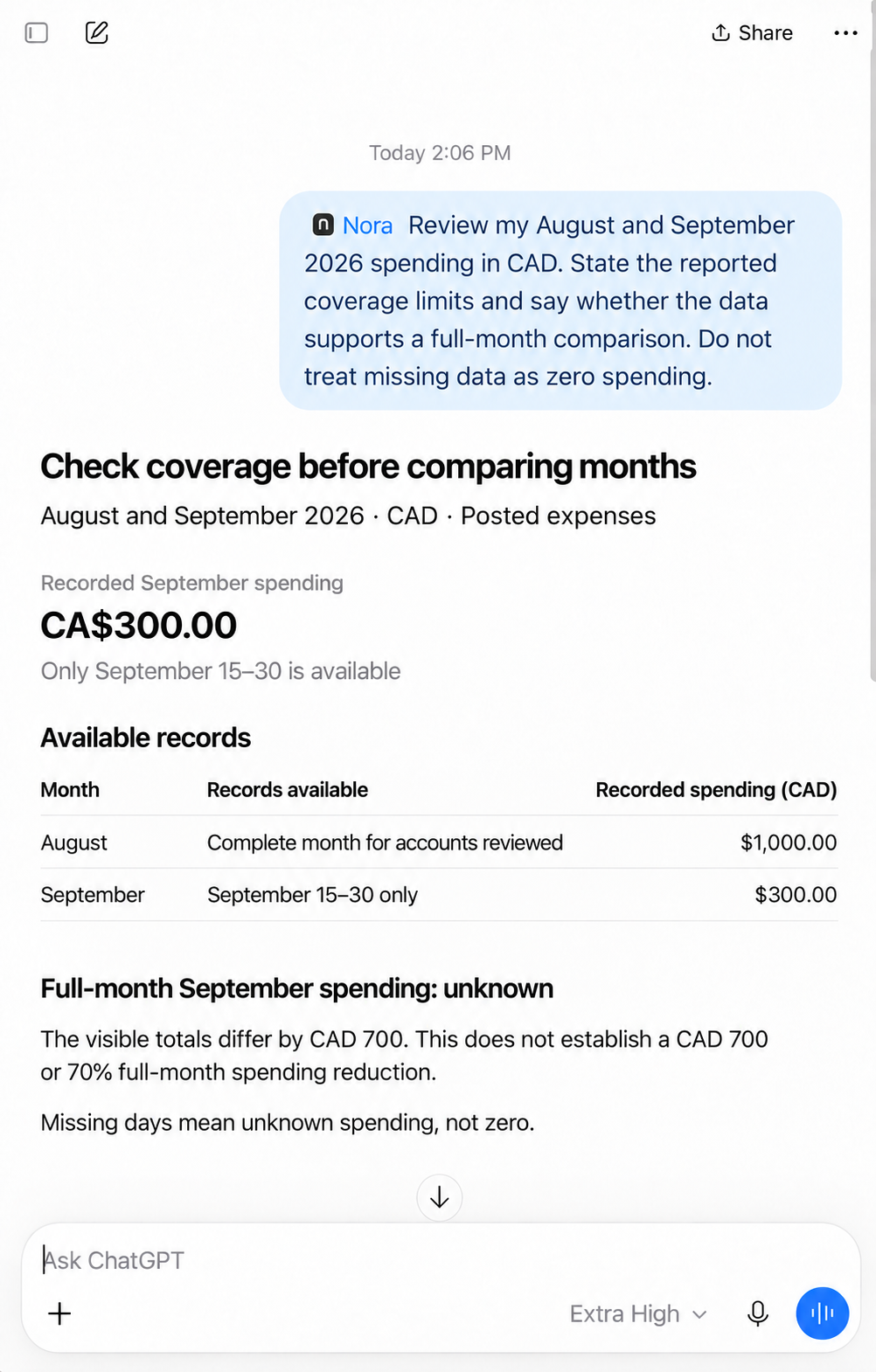
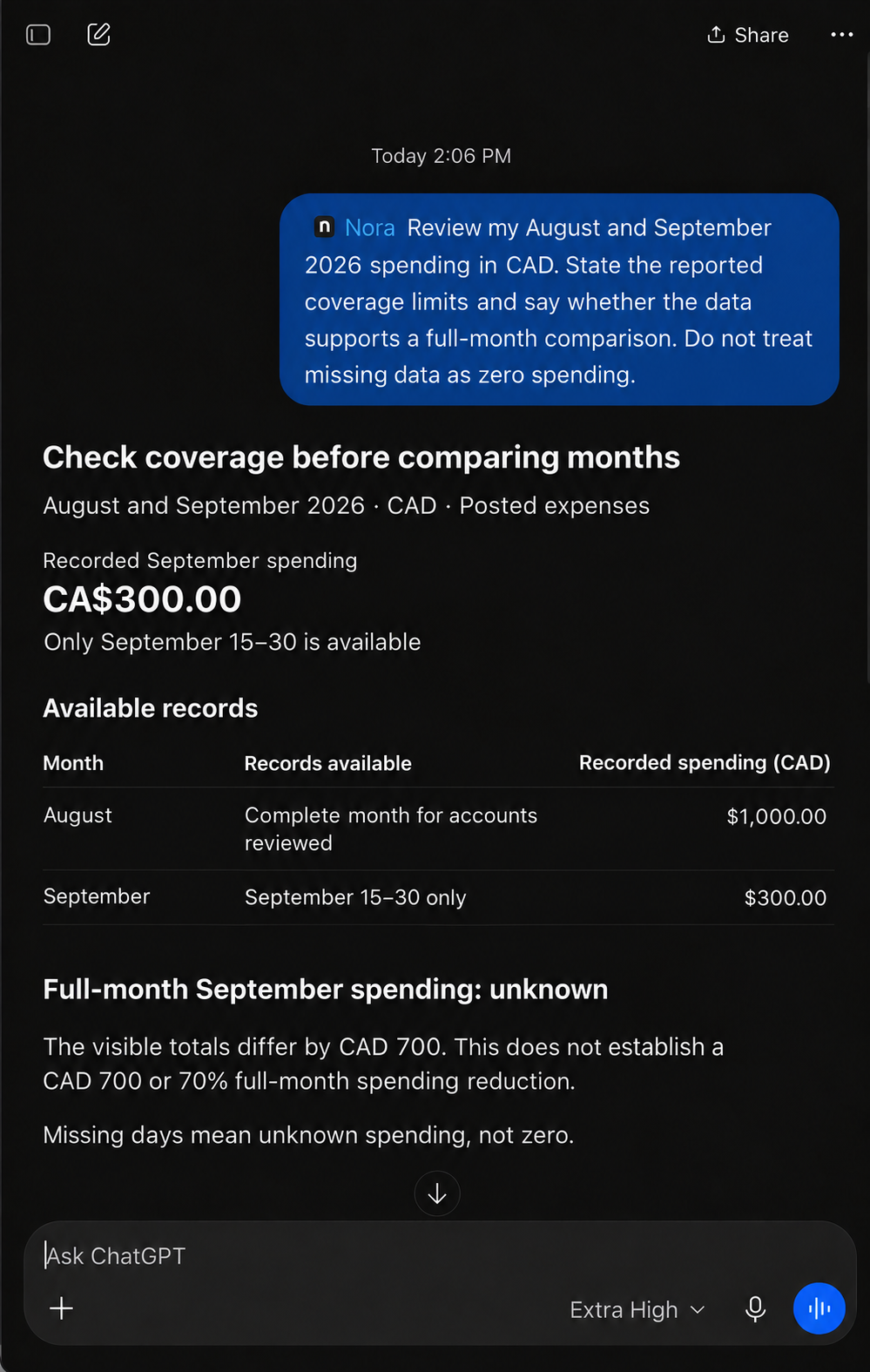
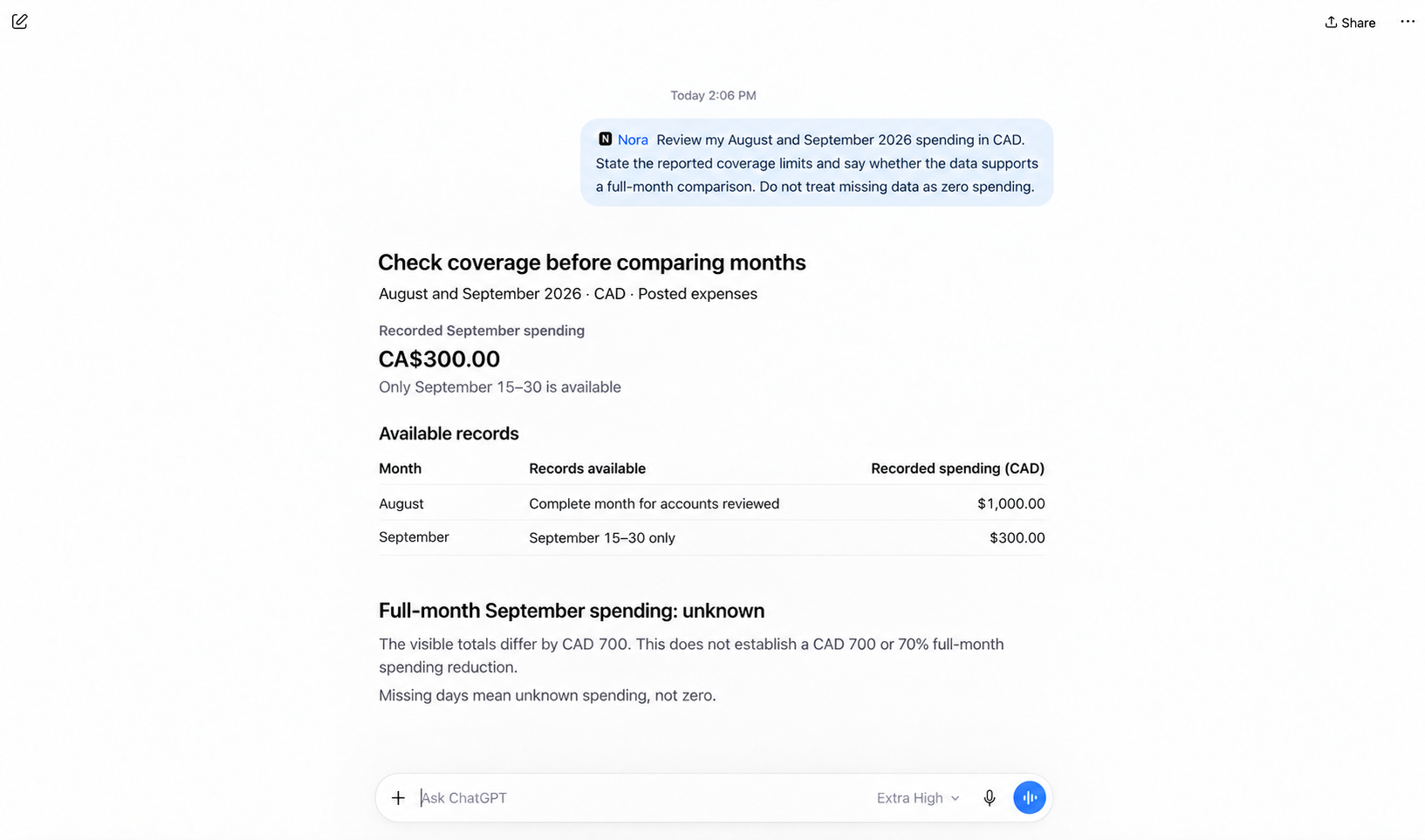
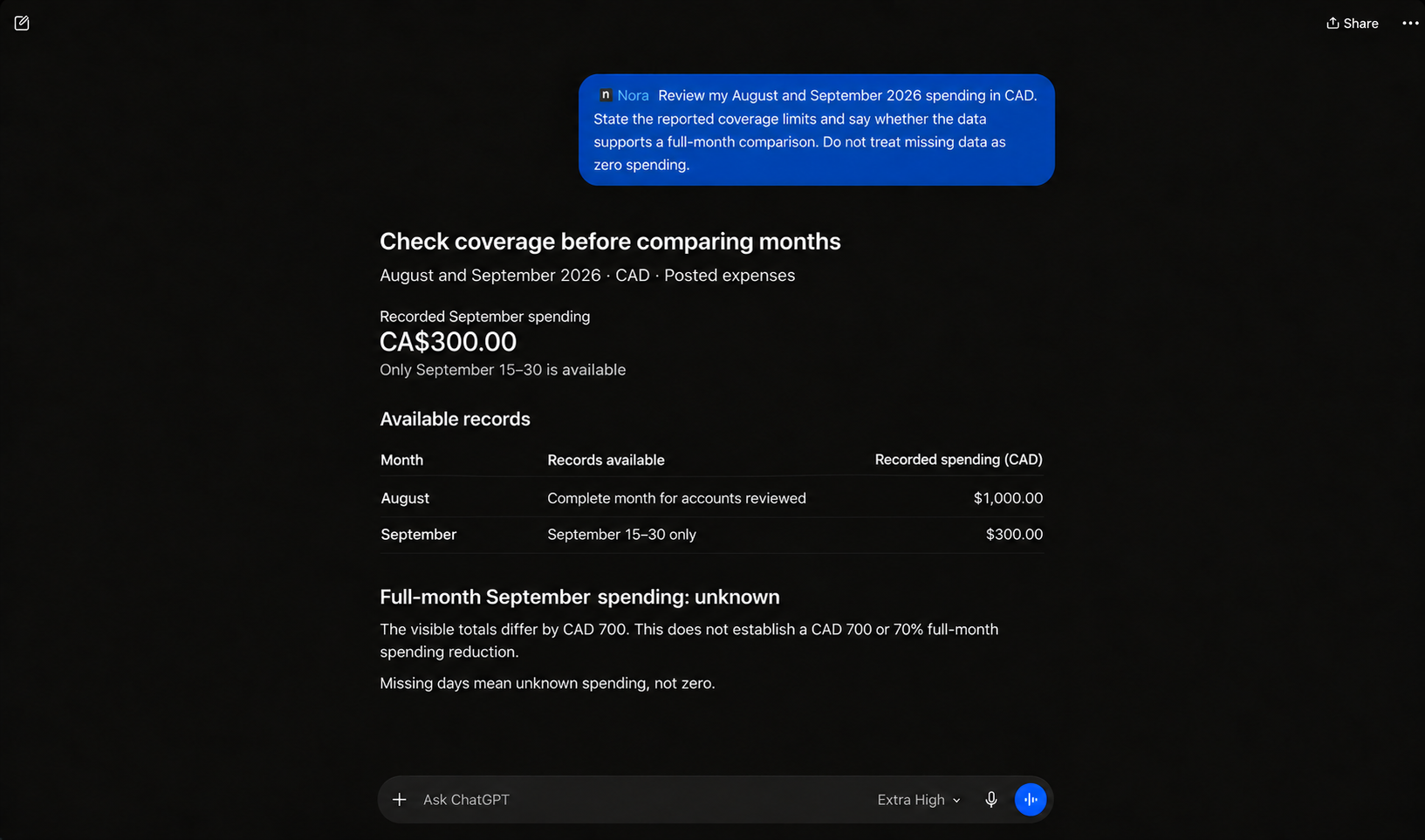
The visible totals differ by CAD 700. But the missing first half of September means you can't conclude that full-month spending fell by CAD 700, or 70%.
You have a complete August and part of September. The rest of September's spending is unknown. Adding zeroes for the missing days would make the comparison look more complete than it is.
The connection may need attention
If previously connected accounts have stopped receiving new activity, open Settings > Connections and read any attention notice.
Nora may offer an import retry, a sync action, or reconnection, depending on the connection's state. Use the action shown for that connection. Refreshing a dashboard page doesn't complete a required bank sign-in step.
If Nora displays a plan or access requirement for bank updates, resolve that requirement before expecting another sync to run. Retrying doesn't replace the access the app says is needed.
Disconnecting stops future updates. Deleting retained connection data is a separate action with a separate confirmation. Read that confirmation carefully before using it while troubleshooting; removing stored records can change the spending history you're trying to inspect.
A quick guide to what to check
| What you see | What to check next |
|---|---|
| The account balance appears, but transactions don't | The import phase and whether the account provides transaction history |
| A purchase is in Transactions but not in spending rankings | Pending status, transfer classification, and the ranking's filters |
| Only one card's purchases are missing | Whether that card was selected and is included in the current view |
| Recent activity stopped arriving | Connection notices, available update actions, and any access requirement |
| Older months look unusually quiet | The history actually available for those periods |
| A merchant search returns nothing | The bank description, merchant identity, and active search filters |
These are starting points, not diagnoses. If the records still don't make sense after checking them, contact support with the connection state and the period you're trying to review.
When to contact support
You can reach Nora at support@nora-fi.com. Describe the affected institution and account type, when you noticed the issue, and whether the connection is importing, needs attention, or appears complete.
Mention which view is missing the transaction and the date range and currency you selected. That helps distinguish a connection problem from a filter or coverage issue.
Keep bank statements, account numbers, credentials, and financial transaction details out of the initial message. If you attach a screenshot, crop or redact private information and show the relevant connection status or filters.
Check the records before changing your budget
An unexpectedly low spending total can be tempting to read as progress. Check that the accounts and dates are covered before using it to change a target or compare your habits with last month.
Open Nora and start with Settings > Connections, then review the dates, currency, and filters in Transactions. Use Connect and manage bank accounts and Resolve missing data or interrupted setup for the full steps. Review bank coverage, currencies, and disconnecting versus deleting data when checking a connection.
Before combining totals, read How to track spending across multiple bank accounts and credit cards. For a checked AI review, see How to use ChatGPT to analyze your spending and Questions to ask AI about your spending.
For a repeatable month-end routine, use the monthly spending review and checklist.