



To analyze your spending with ChatGPT, connect Nora, choose a date range and currency, and ask about the records you have approved for read-only access. You can review spending by category, compare months, and check the transactions behind an answer.
How much went to restaurants?
Which stores account for most of your spending?
Why was this month more expensive than the last?
A spending review in four steps
- Connect Nora to ChatGPT. Sign in and approve the read-only permissions you want to share.
- Choose a period and currency. Start with a completed month and use posted expenses.
- Ask a focused question. Request a category breakdown, then compare months or merchants.
- Check the answer in Nora. Match the dates, currency, transaction status, and coverage before drawing conclusions.
The connection uses MCP, a protocol that lets ChatGPT request information from another app. Nora provides financial results within the permissions you approve, and ChatGPT uses those results to answer your question.
Before you connect
Start with a Nora account containing the accounts and transactions you want to review. If you have just connected a bank, check that its transactions have arrived before asking for a spending analysis.
You also need a ChatGPT account with access to custom MCP connections. Availability and setup controls depend on your account and workspace. Check OpenAI's current developer mode guidance if the relevant option is missing.
Choose a period you can review consistently. A completed calendar month is a useful starting point. If you hold accounts in several currencies, review each currency separately. See how Nora handles currencies before combining amounts.
Connect Nora to ChatGPT
- Enable Developer mode using the settings available in your ChatGPT account. In a managed workspace, an administrator may need to enable it or grant you access. The location of this setting can vary; follow OpenAI’s current guidance.
- Open Plugins or the custom-app settings available in your account, then choose the option to create a connection.
- Name it Nora, enter the server URL below, and select OAuth authentication.
- Create the connection and sign in with the Nora account containing your financial records.
- Review the requested permissions and approve the read-only access you want to provide.
https://mcp.nora-fi.com/mcp
For screenshots of Nora's setup flow, see Connect ChatGPT to Nora.
Nora separates access to aggregate insights, account information, and transaction details. A spending summary and a request for individual purchases can require different permissions. An existing connection does not automatically gain more detailed access.
Start with one clear spending question
Give ChatGPT a date range and currency. Naming Nora also helps make clear which source you want it to use.
For example:
How much did I spend by category from September 1 to September 30, 2026, in CAD? Use posted expenses and show the totals in a table.
This is easier to check than a broad request such as “analyze my finances.” You know which month is being reviewed, which currency applies, and whether pending transactions belong in the result.
Read the answer's coverage before drawing conclusions. A category total based on one connected card may tell you something useful about that card, but it does not establish your spending across accounts that Nora cannot see.
Compare two months to see what changed
Once you understand one month, ask for a comparison:
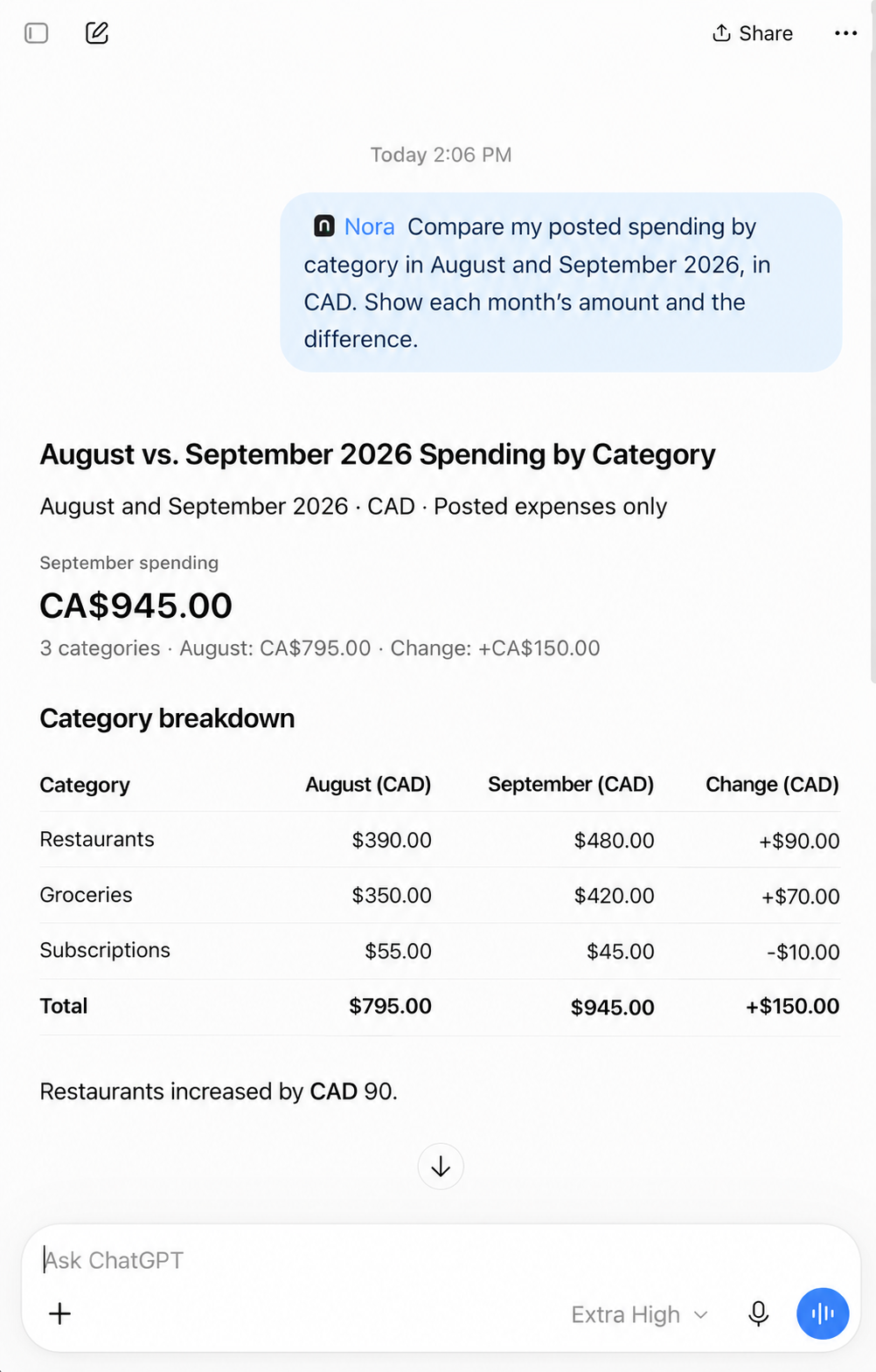
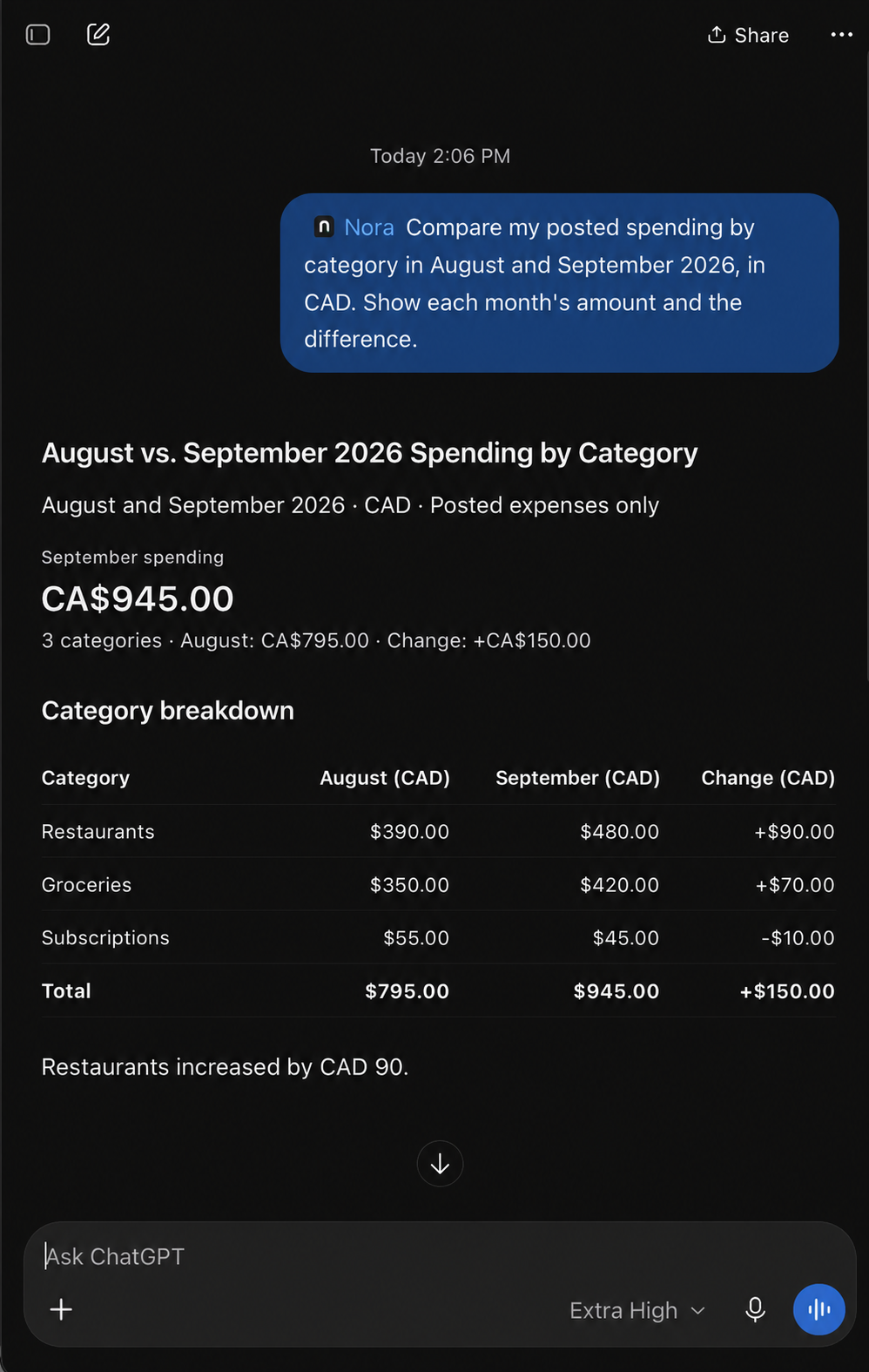
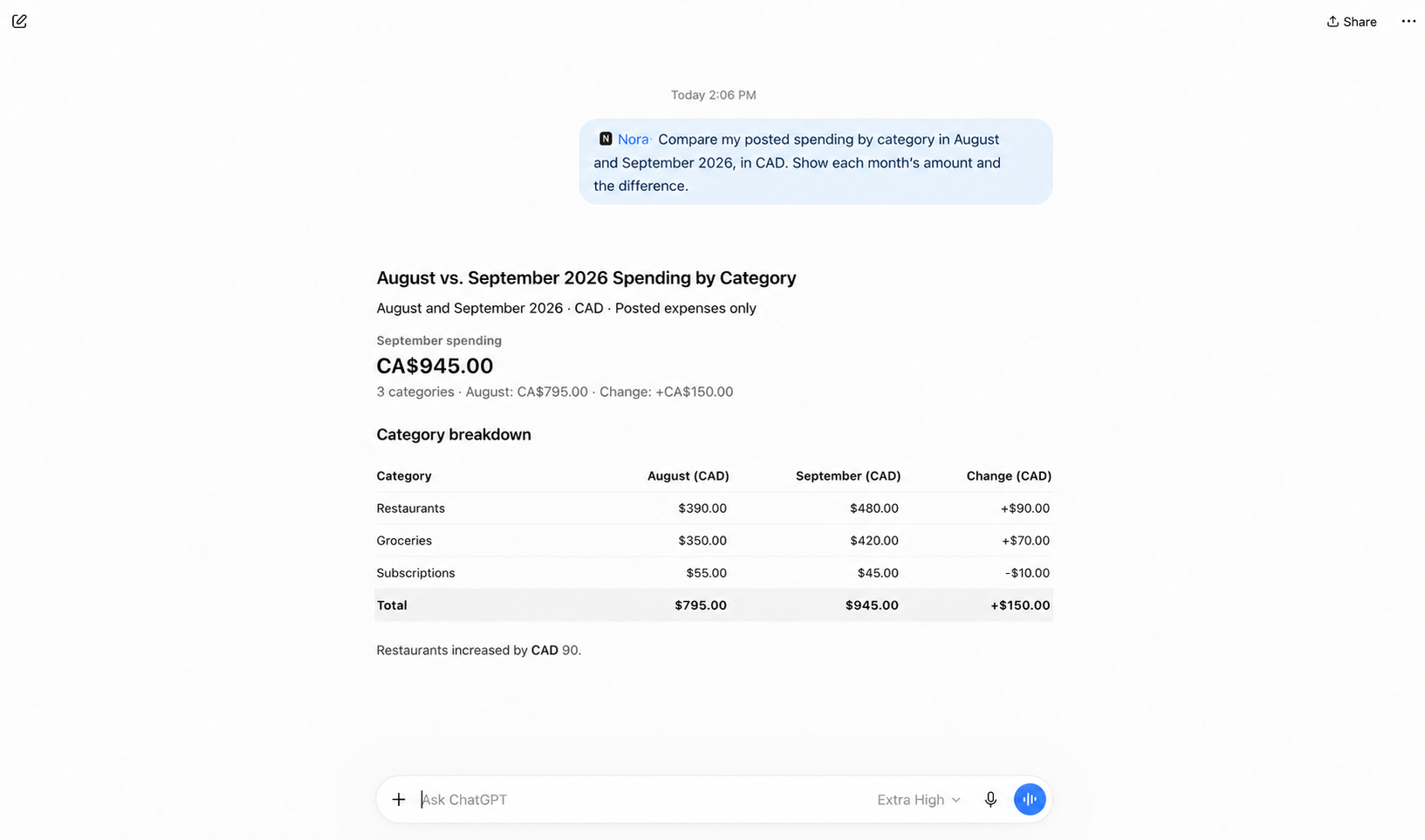
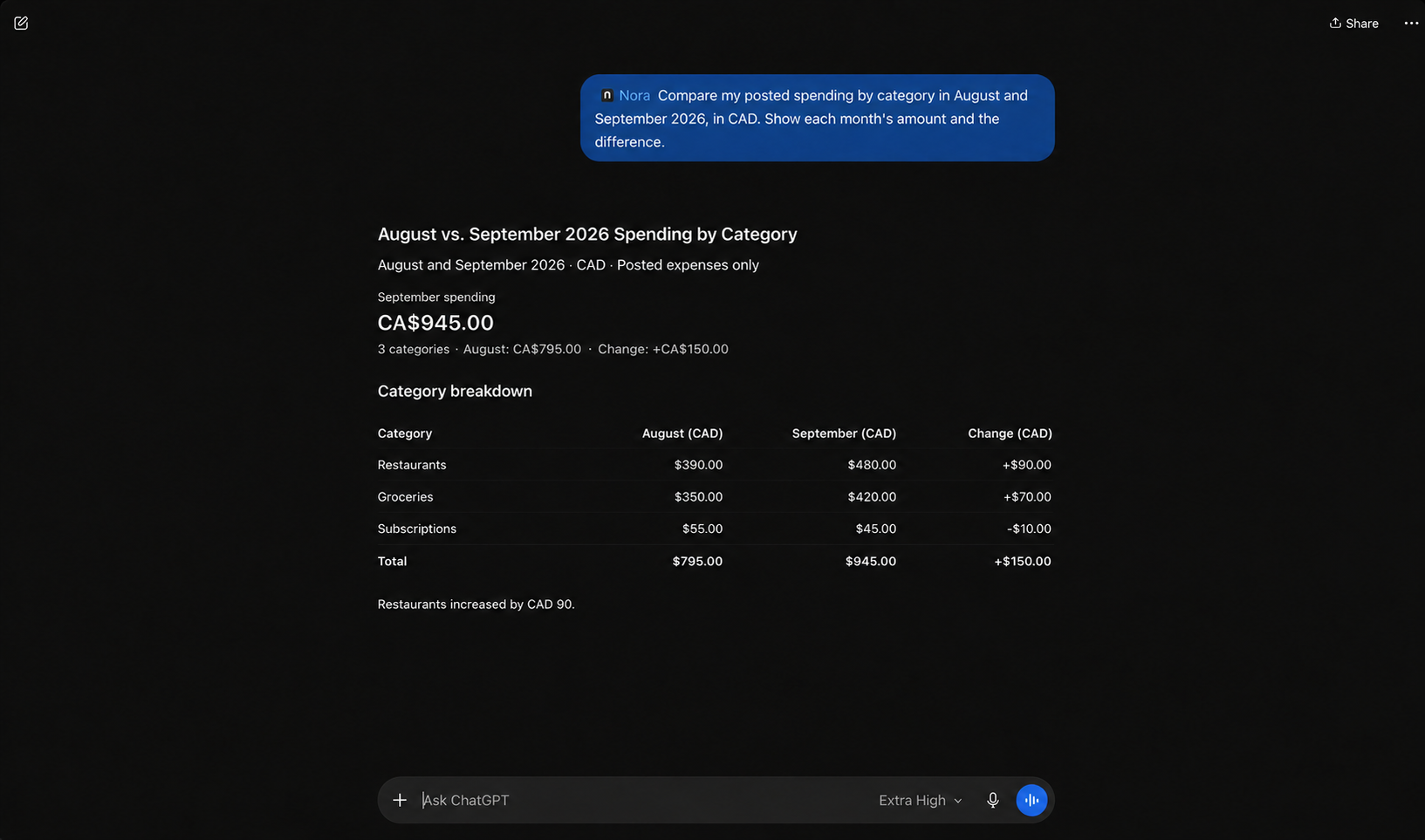
Compare my posted spending by category in August and September 2026, in CAD. Show each month's amount and the difference.
A category comparison can look like this:
View comparison data
| Category | August spending, CAD | September spending, CAD | Change, CAD |
|---|---|---|---|
| Restaurants | 390 | 480 | +90 |
| Groceries | 350 | 420 | +70 |
| Subscriptions | 55 | 45 | -10 |
The restaurant increase is CAD 90. That identifies something to investigate; it does not tell you why the increase happened.
You could follow up with:
Show the merchants behind my restaurant spending in those two months. Which totals changed the most?
Merchant details require the corresponding transaction-detail permission. If the connection cannot access them, review your approved permissions or inspect the merchant view directly in Nora.
Use comparable periods. Comparing the first ten days of one month with all of the previous month can create a misleading impression unless the answer clearly accounts for the difference.
Check the transactions behind an answer
When a total looks unexpected, ask for a narrower view:
Show the posted restaurant transactions from September 1 to September 30, 2026, in CAD, with their dates, merchants, and amounts. Tell me whether this is the complete list or a limited page of results.
Nora returns bounded transaction results, so a short list should not be treated as an entire month's activity without checking its coverage. You need transaction-detail access for this request.
Open the corresponding category or merchant in Nora and compare the period, currency, and records. If a purchase has the wrong category, correct it in Nora before relying on that category's breakdown.
Follow an answer back to the records
To check an answer, compare its period, currency, and records with the transaction view in Nora:
August transaction review
August 1–31, 2026 · CAD
Visible records
- August 27: A&W Restaurants and Subway.
- August 29: Uber Eats — Pending. Leave it out of a posted-only review.
Coverage: This partial view does not establish your total spending for the month.
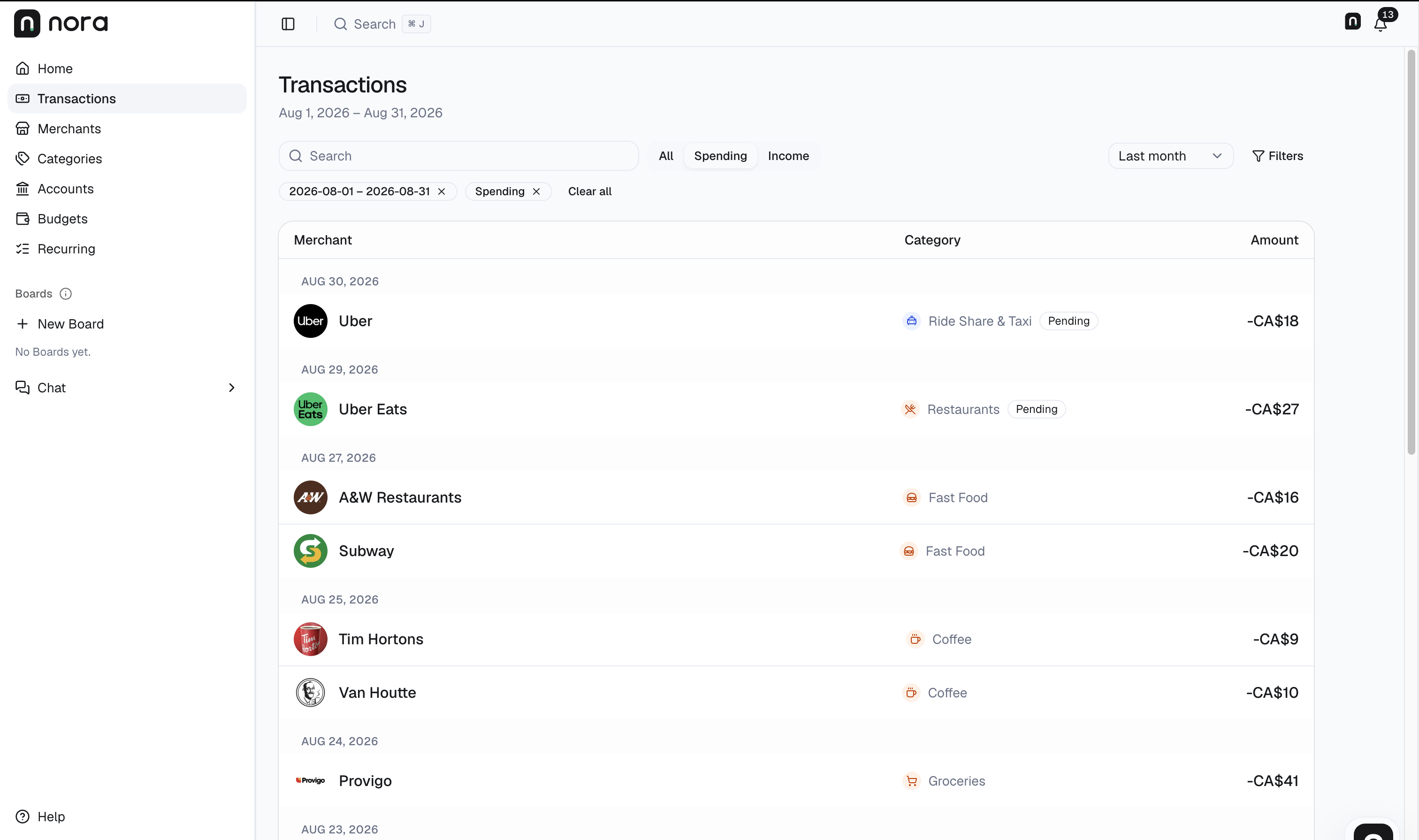
Nora transaction view captured on September 12, 2026. Interface shown in English.
- Match the period. The date range at the top is August 1–31, 2026. It differs from the September example prompt above.
- Match the currency. The amounts use CA$, meaning CAD. The list displays rounded amounts; open transaction details for precise values.
- Match the records and status. Find A&W Restaurants and Subway on August 27. The Uber Eats entry on August 29 is pending. Keep pending activity separate when checking a posted-only answer, and do not treat the visible rows as a complete month.
Also check whether transfers or card repayments explain a difference. Moving money between your own accounts is different from buying something. Counting both a card purchase and its repayment as purchases can inflate a spending total.
Separate the numbers from the explanation
A category total describes the records in the selected period. An explanation of why you spent more involves interpretation.
For example, higher restaurant spending could reflect more visits, larger purchases, or one unusual meal. Ask ChatGPT to show what the records support and identify what it cannot establish:
Based on those records, what explains the increase? Separate what the transactions show from your interpretation, and say what information is missing.
ChatGPT can help you explore the evidence and consider changes. It cannot know your priorities or whether a purchase was worthwhile from its amount alone.
Understand the connection's limits
Nora's ChatGPT connection is read-only. It cannot edit transactions, make payments, or move money. Saved category budget targets are not included in its MCP results, so this workflow should not be presented as a way to read the remaining amount in your saved Nora budget.
ChatGPT processes the questions you send and the financial results it receives under OpenAI's terms and your applicable settings. Read-only access still involves sharing authorized information. Review Nora's privacy policy and your ChatGPT data settings before connecting.
You can review connected AI apps and revoke their access in Nora's privacy settings. Revocation prevents further authorized requests; it does not itself remove information already returned to another service.
If ChatGPT cannot find records, check the import status in Nora, your selected dates and currency, and the connection's permissions. Missing history should be described as missing, rather than interpreted as zero spending.
Try a monthly spending review
Start with one completed month. Ask for a category breakdown, choose one total to investigate, and check the records behind it. That gives you a concrete basis for deciding whether anything needs to change.
Open Nora to review your records, or follow the ChatGPT connection guide to set up the workflow.
For seven focused prompts and checked calculations, read Questions to ask AI about your spending.
For account coverage and card-repayment checks, read How to track spending across multiple bank accounts and credit cards.
If a purchase or period is missing, read Why transactions may be missing from your budgeting app.
For a repeatable month-end routine, use the monthly spending review and checklist.