



To track spending across bank accounts and credit cards, bring the purchases into one view for the same dates and currency. Check that every relevant account and its history are included, then keep transfers, card repayments, and pending activity separate from posted purchases.
Does this total include every account?
Am I counting card payments twice?
Which purchases explain the total?
You buy groceries with one card, pay for dinner with another, and use your bank account for a few bills. Each app shows its own transactions, so figuring out what you spent across everything becomes a bit of a chore.
Nora brings connected financial records into one place, with spending views by category and merchant. Here's how to put those records together and check what the totals actually mean.
Start with the accounts you spend from
Make a list of the accounts and cards you use. Include the card you only use for online purchases or subscriptions, if it has activity during the period you're reviewing.
It helps to separate what each account is for:
| Account | What to look for |
|---|---|
| Main bank account | Debit purchases, bills, income, and outgoing card payments |
| Credit card | Purchases, fees, interest, and incoming payments |
| Second bank account or card | Spending that would be missing from your main bank's view |
| Savings account | Transfers and balances that help explain where money moved |
These are examples of account roles, not a list of accounts you need to open. The point is to work out which existing records belong in your review.
If one card is missing, the combined spending total will be missing its purchases too. Connecting several accounts doesn't establish that you've included everything you use.
Connect your accounts in Nora and check the import
Bank connections and fresh bank updates are Nora Plus features. Follow any access requirement shown in Nora; a valid trial or active launch grant can qualify. Existing stored data and manual finance remain available without Plus.
In Nora, choose Connect an account from Home, or add an account through Settings > Connections. Complete the Plaid connection steps and select the accounts you want to share. Availability depends on the institution and country you choose.
Once connected, check the import status in Settings > Connections. An account balance can appear before its transaction history is ready. Seeing an account in the dashboard doesn't necessarily mean all its available transactions have arrived.
Nora fetches the history available from your bank and adds the transactions. The first batch is not proof that the import is complete, so check the connection status before treating the spending view as a finished monthly report.
Some accounts provide balances without transaction activity. If an account has nothing to show, check what data is available before assuming its spending was zero.
Use the same dates and currency
Pick a date range and use it across the accounts you're comparing. For example, September 1 through September 30, 2026.
A calendar month and a credit card statement period may cover different dates. If your bank view shows September while your card statement covers part of September and part of October, adding their totals won't give you a September spending figure. Start from the transactions within the dates you actually want.
Keep currencies separate too. CAD 100 and USD 100 don't add up to one meaningful, unlabeled 200 total. Nora's spending views separate currencies; use the currency selector to review each one.
A converted comparison would need an exchange-rate basis. Selecting CAD in a spending view should not be treated as a promise that every USD transaction was converted into CAD.
Count the purchase once, even when you pay by credit card
The confusing part is often the repayment.
Say you buy CAD 120 of groceries on your credit card. Later, you pay the card from your bank account. The purchase belongs in your grocery spending. The payment settles the card debt; it doesn't mean you bought another CAD 120 of groceries.
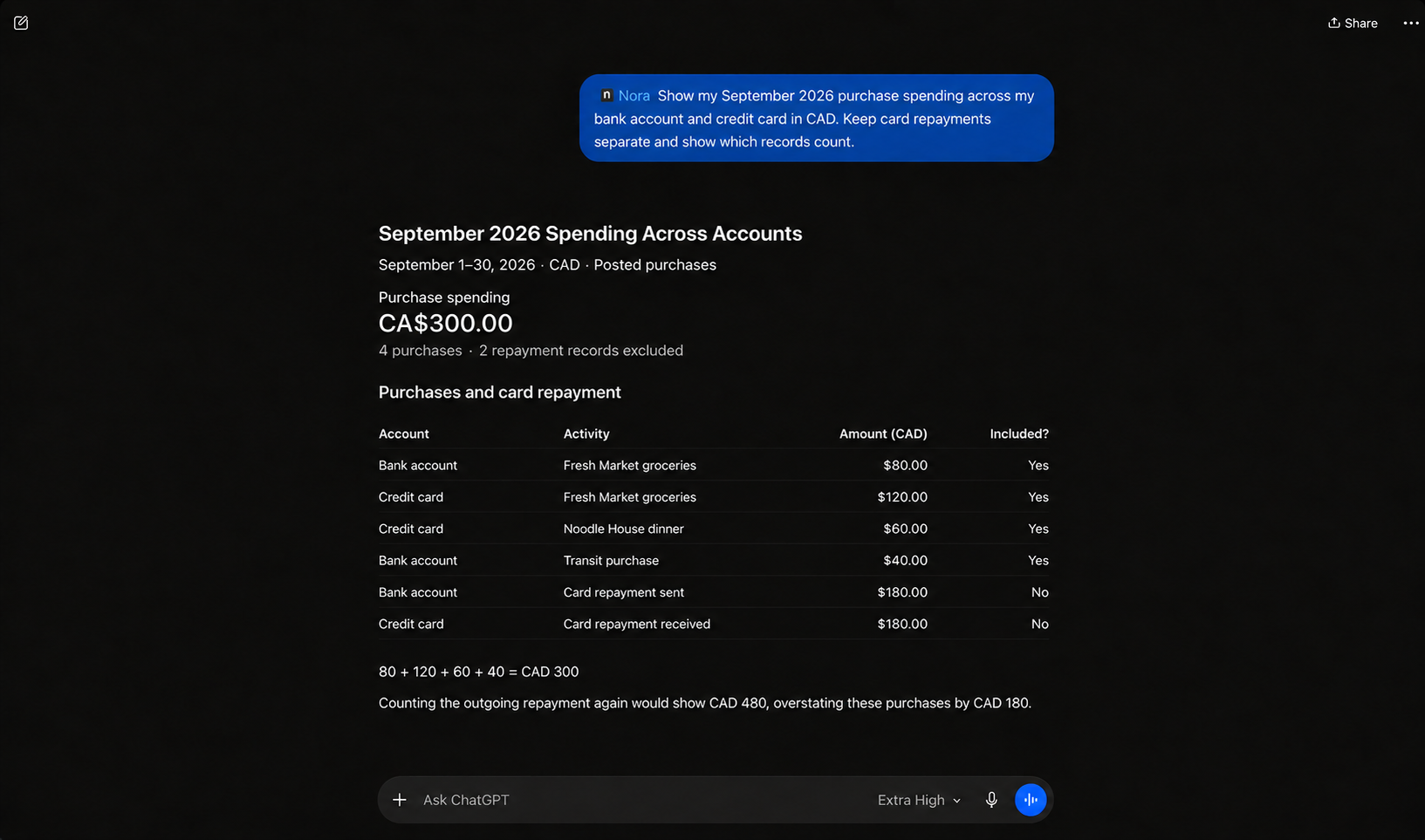
Here's a spending review covering one bank account and one credit card in September. All amounts are CAD, shown as magnitudes, and the purchases are posted. The two payment rows show the same repayment leaving the bank account and arriving at the card.
| Account | Activity | Amount, CAD | Count as purchase spending? |
|---|---|---|---|
| Bank account | Fresh Market groceries paid by debit | 80 | Yes |
| Credit card | Fresh Market groceries | 120 | Yes |
| Credit card | Noodle House dinner | 60 | Yes |
| Bank account | Transit purchase | 40 | Yes |
| Bank account | Payment sent to credit card | 180 | No |
| Credit card | Payment received from bank account | 180 | No |
You can also ask a connected AI assistant to review the records you have approved. Account and transaction details require the corresponding permissions; a limited page is not proof of complete account coverage.
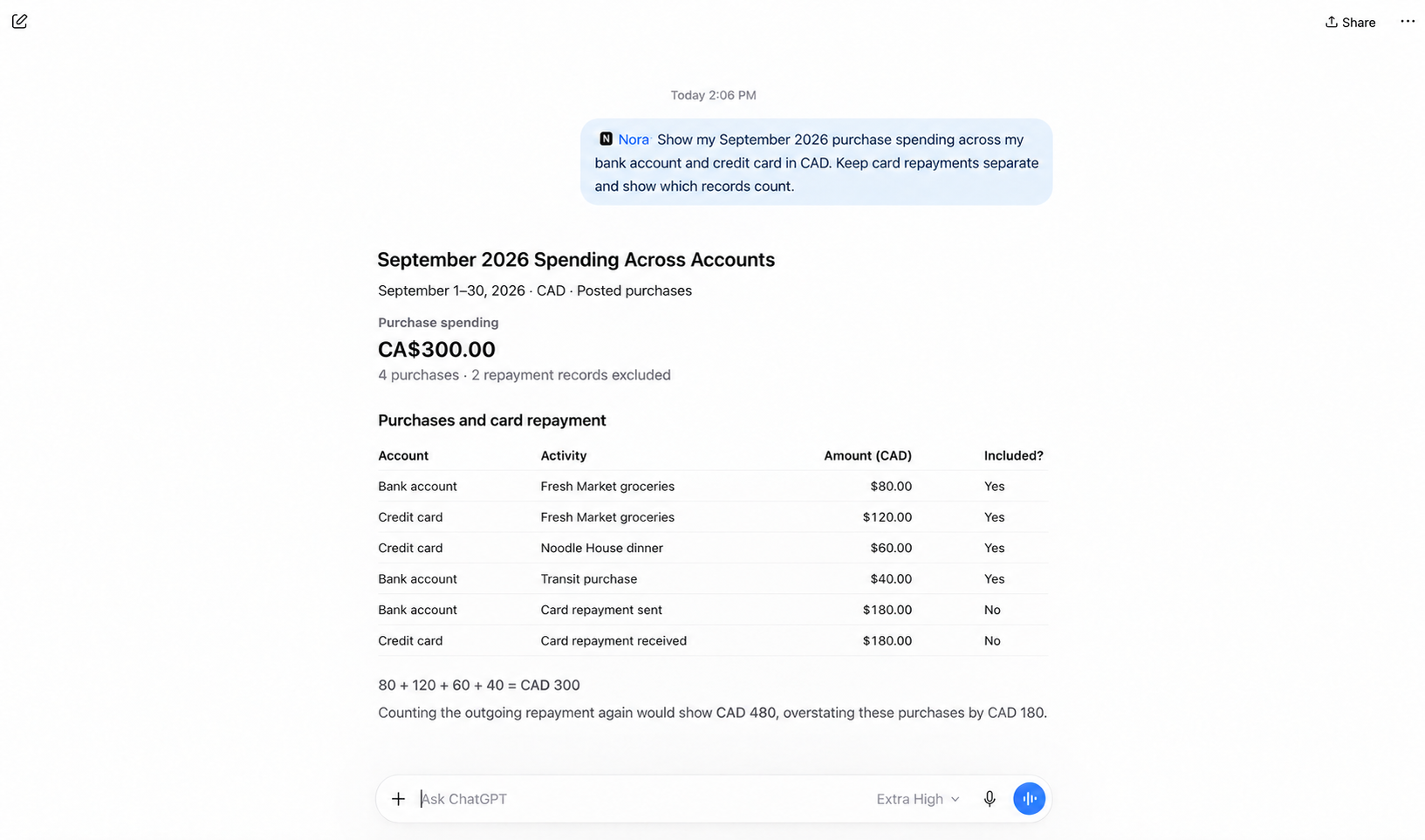
Show my September 2026 purchase spending across my bank account and credit card in CAD. Keep card repayments separate and show which records count.
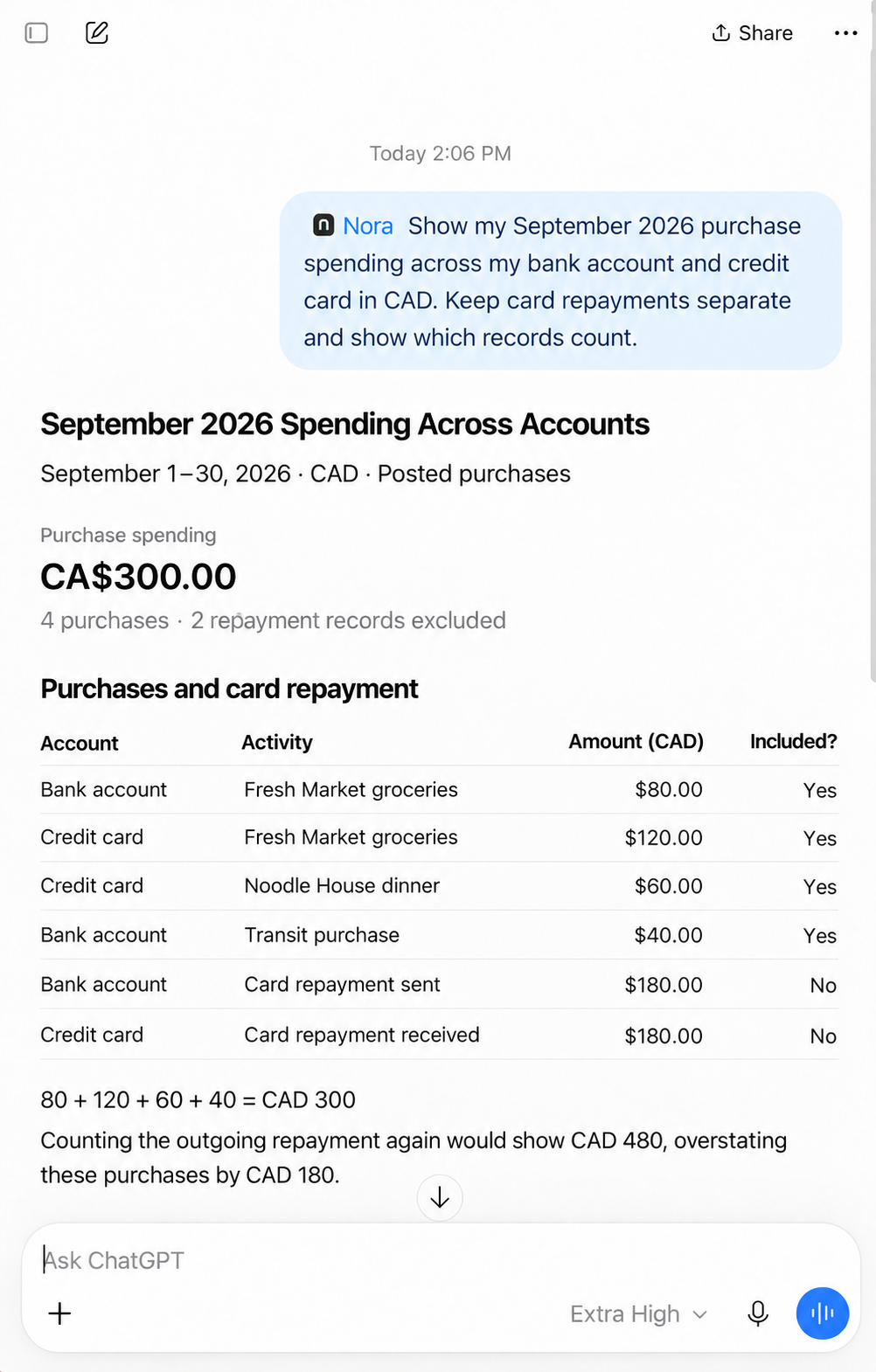
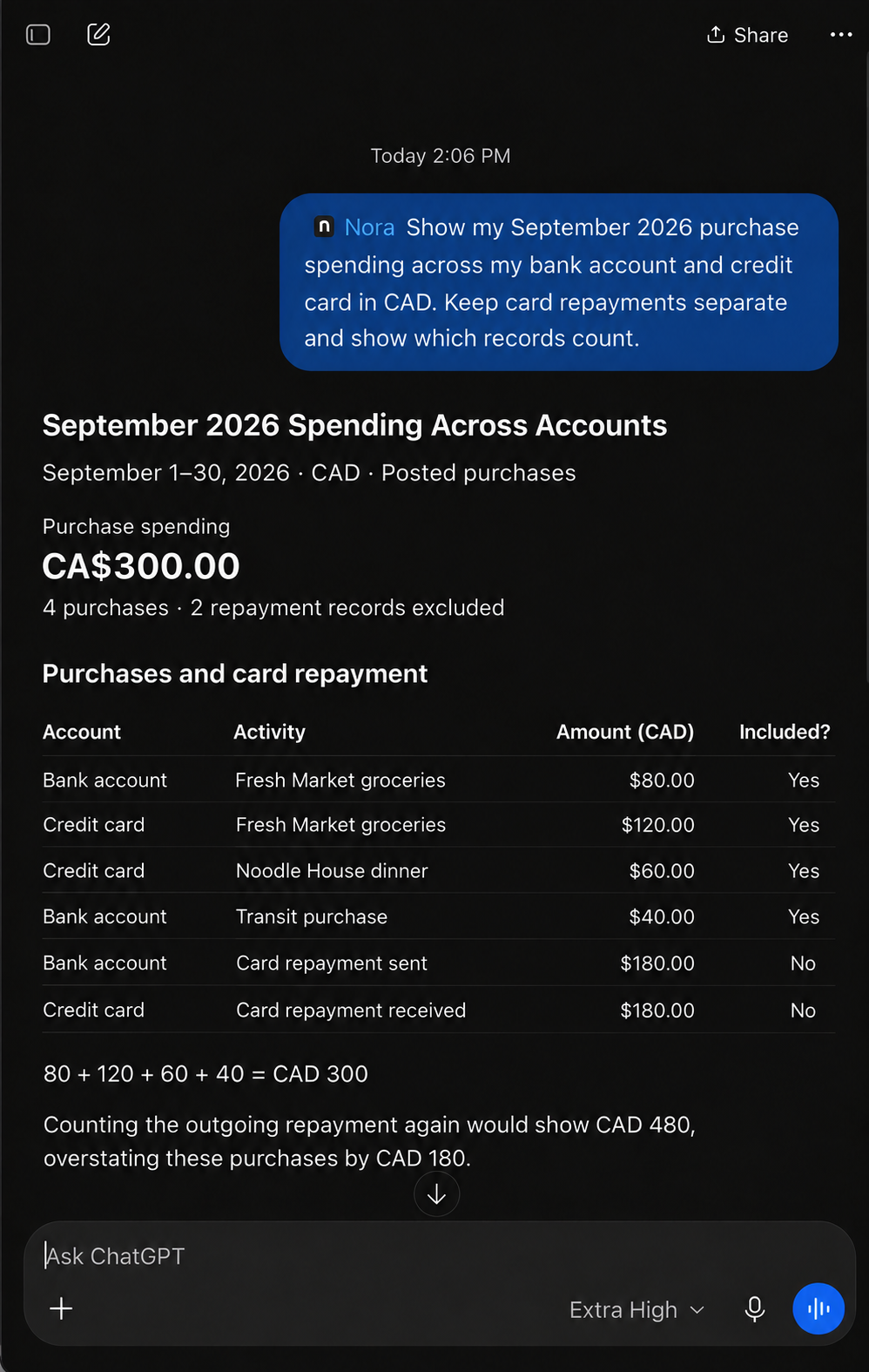
The purchase spending is:
80 + 120 + 60 + 40 = CAD 300
If you count the outgoing CAD 180 card payment as another purchase, the total becomes CAD 480. That's CAD 180 too much for the purchases shown here.
The repayment still matters when you want to know what left your bank account or how much you owe on the card. It's just answering a different question from how much you spent on purchases.
This example assumes the underlying card purchases are included in the records. Paying an older card balance doesn't tell you when those purchases happened. Interest and fees are separate expenses that also need their own treatment.
Check transfers and transaction statuses
The same distinction applies when you move money between your own bank accounts. Transferring money to savings changes where you hold it. It doesn't, by itself, represent buying something.
Nora's Home spending card and merchant/category rankings use posted expense records and leave out transfers and pending activity. Those totals depend on how the transactions are classified. If a card payment looks like an ordinary expense, inspect the record before assuming the resulting total is right.
You can open transaction details in Nora to review the account, merchant, category, date, and pending status. Correct editable details when they're wrong; editing Nora's record doesn't change what happened at the bank.
Also check whether a pending transaction is being counted alongside its posted version in the view you're using. Different filters can produce different totals. Two similar purchases aren't automatically duplicates, so compare their accounts, dates, status, and descriptions before drawing that conclusion.
Refunds and reimbursements can complicate a review too. Check how they're represented rather than assuming every spending figure is already net of credits.
Follow a total back to its records
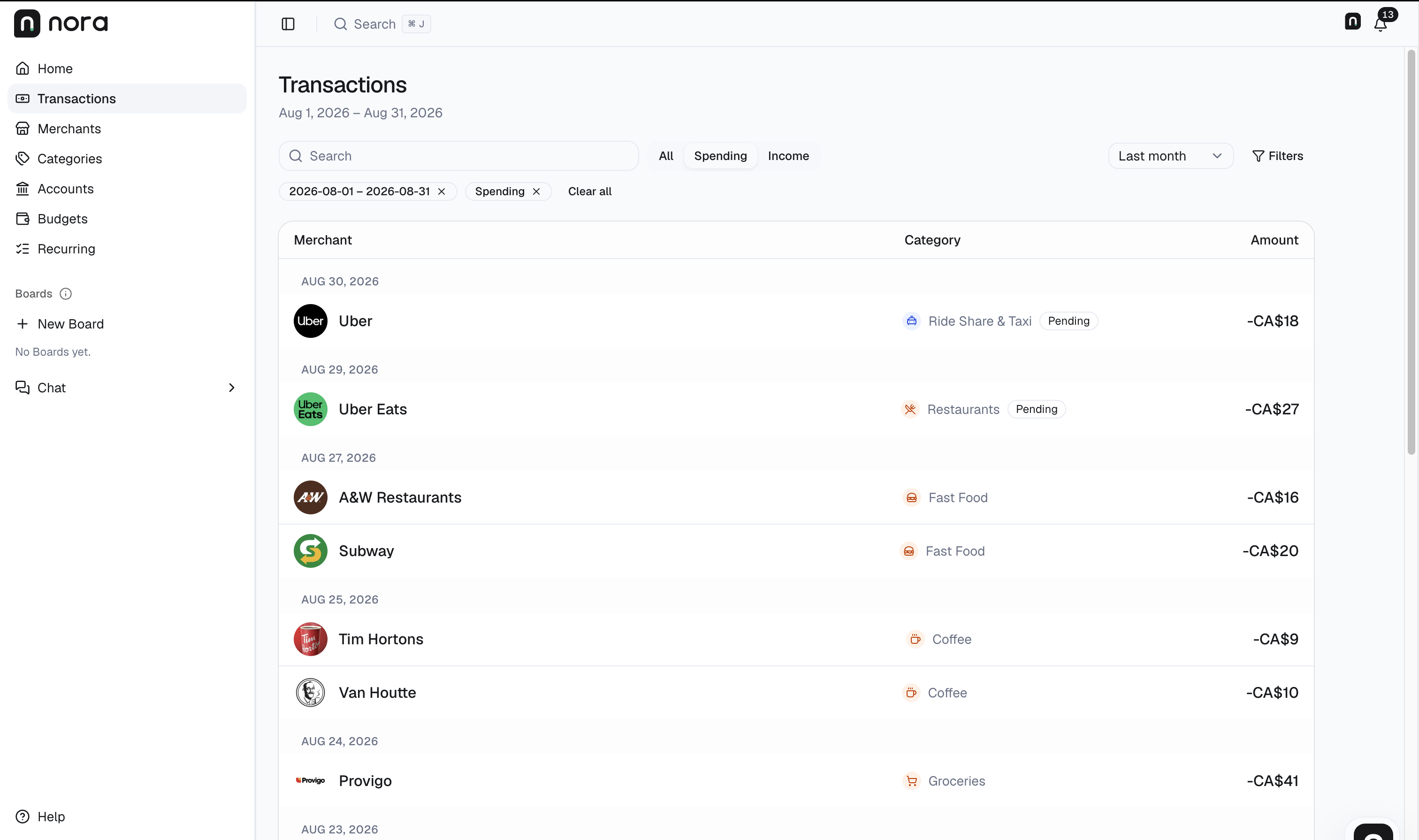
Nora transaction view captured on September 12, 2026. Interface shown in English.
- Match the period. This view is August 1–31. Use September 1–30 to check the purchases in the September table above.
- Match the currency. CA$ means CAD. Open the details for exact amounts rather than relying on rounded list values.
- Match the records and status. A&W Restaurants and Subway appear on August 27; Uber Eats on August 29 is pending. These visible rows do not establish all your accounts or the whole month, and do not verify the September purchases above.
Look at categories and merchants across the accounts
Once the records are in the same period and currency, you can ask something more useful than “What left this account?”
For the purchases above, the category breakdown is:
| Category | Spending, CAD |
|---|---|
| Groceries | 200 |
| Restaurants | 60 |
| Transport | 40 |
| Total | 300 |
Fresh Market accounts for CAD 200 across the bank account and card. Looking at just one account's purchases would show CAD 80 or CAD 120, which is why the combined view helps.
In Nora, open Categories to review types of spending or Merchants to compare businesses. Check the dates, currency, and account filters. Opening an amount takes you to the transactions behind it, with the relevant filters carried through.
Check that the supporting records explain the total and that a filter hasn't restricted the results to just one account.
Check coverage before comparing months
Before concluding that your spending went up or down, check:
- Whether every account you intended to review is included.
- Whether the relevant imports are complete and the connections need attention.
- Whether both months contain the history you expect.
- Whether you're using the same currency and transaction-status rules.
- Whether transfers, repayments, or category mistakes are affecting the figures.
An incomplete month can look like a low-spending month. That's especially easy to miss when an account has only recently been connected or has a shorter available history than another account.
If you use a connected AI assistant, ask it to state the scope before interpreting a change:
Before comparing my spending across accounts, state the dates, currency, transaction statuses, accounts included in the available results, and reported import or coverage limits. Say when the available records cannot establish a complete total.
Check the same account and connection scope directly in Nora. The external AI connection is read-only and cannot correct categories, make payments, or move money. The connected service still processes the financial information returned to it.
Make the review easy to repeat
Keep the same date range, currency, and account scope when checking your totals. Then open the categories or merchants that need a closer look. You can compare months once you're comfortable that the records cover what you're trying to measure.
Nora can help you do that in one place, while keeping the individual transactions available to inspect. A combined total becomes more useful when you know which accounts and purchases went into it.
Open Nora to review your connected accounts and spending. For the full setup steps, read Connect and manage bank accounts. Check bank coverage and how Nora handles currencies before combining records.
For a repeatable AI review, read How to use ChatGPT to analyze your spending and Questions to ask AI about your spending.
If a purchase or period is missing, read Why transactions may be missing from your budgeting app.
For a repeatable month-end routine, use the monthly spending review and checklist.