



To review a month of spending, check the accounts, dates and currency first. Put posted income and spending side by side, follow the largest categories into their transactions, compare complete months, then choose one next step. Nora lets you check the records behind the totals.
Where did my money go this month?
Which purchases explain the biggest category?
What should I revisit next month?
You check your account at the end of the month, see the balance, and wonder how you got there. Scrolling through the transactions helps a little, but there's a lot to make sense of. Some purchases were regular bills, some were one-offs, and some barely registered when you made them.
A monthly spending review gives you a way to work through that. Start with income and spending, look at the categories that stand out, then open the transactions behind the numbers. Once you understand what happened, you can decide whether anything needs to change next month.
Here's a practical way to do it in Nora, with a worked example and a checklist you can reuse.
Before you start, check what the records cover
Pick a completed calendar month and one currency. For example, September 1 through September 30, 2026, in CAD.
Check that the accounts you want to review are included and that their available transaction history has finished importing. In Nora, Settings > Connections shows the connection and import state. An account balance appearing doesn't mean all its transactions have arrived.
You also need enough history for the period you've chosen. A completed import can still contain less history than you'd expected. If half the month is missing, keep that gap visible instead of treating it as a period with no spending.
Nora's Home spending and income cards use posted activity and exclude pending transactions and transfers. Keep those rules in mind when comparing them with a bank balance or a transaction list that uses different filters.
1. Put income and spending next to each other
Open Home, set the relevant period and currency on the spending and income cards, and write down both amounts.
If you use ChatGPT with Nora connected, you can also ask:
Review my posted income and expense spending from September 1 to September 30, 2026, in CAD. Show them separately, then calculate income minus spending. Keep transfers separate.
The assistant can only request the data you have approved. Check the same dates, currency and coverage in Nora before relying on its answer.
We'll use these amounts throughout the review. Assume the records are complete for the accounts included in the example. All amounts are CAD, and the spending figures include posted expenses only.
| September 2026 overview | Amount, CAD |
|---|---|
| Recorded income | 2,400 |
| Recorded spending | 1,010 |
| Income minus spending | 1,390 |
The calculation is straightforward:
2,400 - 1,010 = CAD 1,390
That tells you the difference between income and spending in these records. It doesn't automatically tell you how much was saved or how much is available for another purchase. Opening balances, transfers, upcoming bills, and activity outside the accounts reviewed can matter too.
If the number surprises you, check what went into it before interpreting it. A transfer into your account shouldn't become ordinary income just because the balance increased, and a credit card repayment shouldn't become another purchase when the original purchases are already included.
2. Look at where the spending went
Open Categories and use the same month and currency. If an account filter is active, check that it includes the accounts you intended to review.
Here's the breakdown of the CAD 1,010 total:
| Category | September spending, CAD |
|---|---|
| Restaurants | 480 |
| Groceries | 420 |
| Transport | 65 |
| Subscriptions | 45 |
| Total | 1,010 |
Restaurants and groceries account for CAD 900 combined, so they're reasonable places to look more closely in this example. That doesn't mean either amount is wrong or that both need cutting. You still need the context behind the purchases.
Check the categories before using them to judge your habits. A transaction filed under the wrong category can make one area look expensive while hiding spending in another. Nora also includes uncategorized spending in the period total, so don't overlook it when checking the breakdown.
3. Open the transactions behind a category
Choose one category that caught your attention. In Nora, opening its spending amount takes you to the supporting transactions with the relevant period, currency, and filters.
For the restaurant spending in our example:
| Merchant | Purchases, CAD | Total, CAD |
|---|---|---|
| Noodle House | 30, 40, 50, 60 | 180 |
| Harbor Dinner | 220 | 220 |
| Corner Cafe | 80 | 80 |
| Total | 480 |
There are four purchases at Noodle House and one larger purchase at Harbor Dinner. Those are different patterns to think about. Cutting back on a regular visit would be a different decision from accounting for one unusual dinner.
The amounts alone won't tell you why the purchases happened or whether they were worthwhile. Use what you know about the month to interpret them.
If a transaction's category, merchant, or effective date is wrong, open its details and correct the editable field. Save the change before relying on the revised breakdown. The correction changes Nora's record; it doesn't change the bank transaction itself.
Check the same filters on a transaction
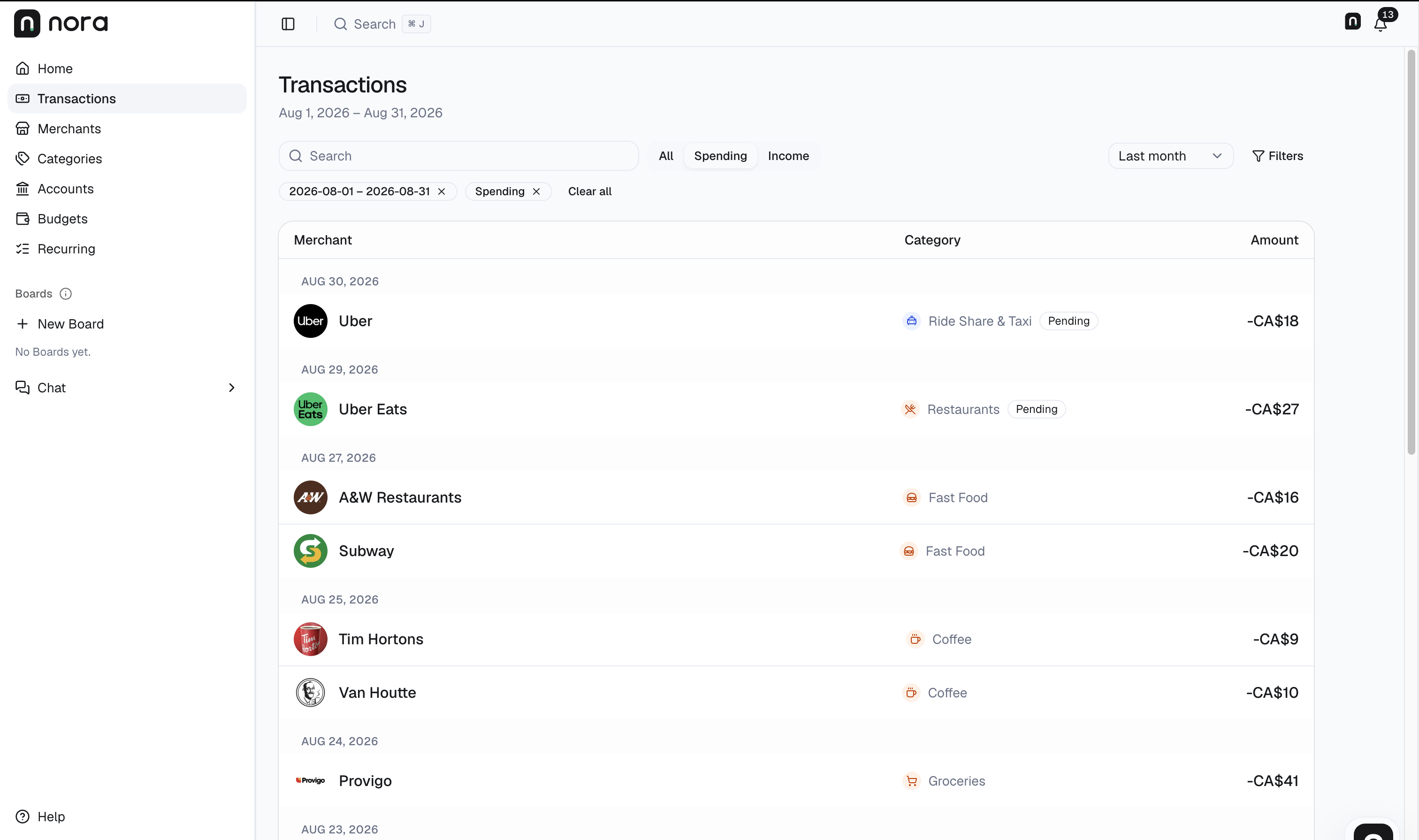
Nora transaction view captured on September 12, 2026. Interface shown in English.
- Match the period. This capture shows August 1–31. Use the month you are reviewing when opening your own supporting records.
- Match the currency. CA$ means CAD. Keep purchases in other currencies in their own review.
- Read the records and status. Check each merchant, amount and category. Uber Eats on August 29 is pending and does not belong in a posted-only total. These visible rows do not verify September's restaurant breakdown or complete monthly history.
4. Compare with the previous month
Use the same currency and account scope, and check that the earlier month has the history you expect.
You can ask ChatGPT for the same comparison:
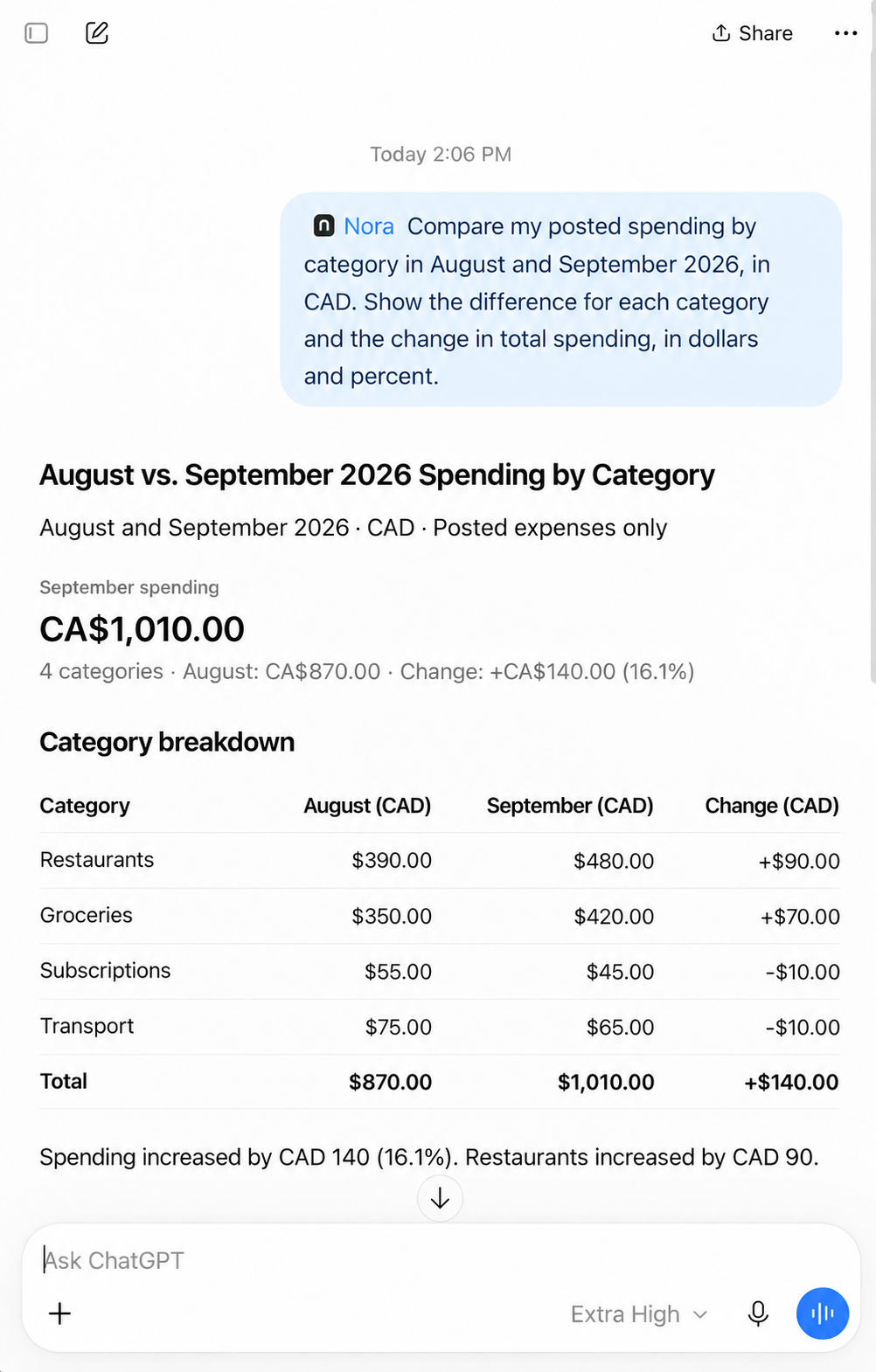
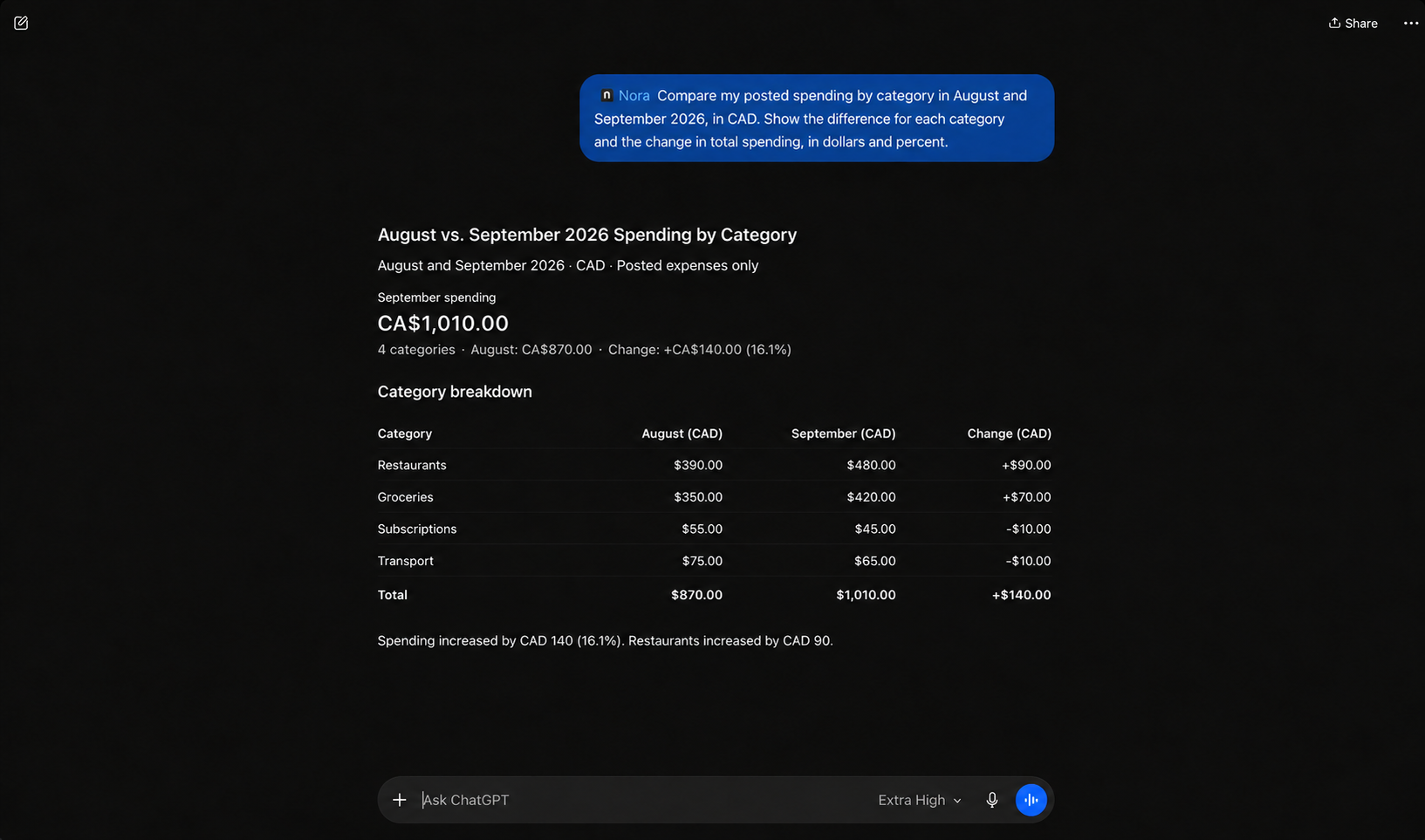
Compare my posted spending by category in August and September 2026, in CAD. Show the difference for each category and the change in total spending, in dollars and percent.
For these records:
View comparison data
| Category | August, CAD | September, CAD | Change, CAD |
|---|---|---|---|
| Restaurants | 390 | 480 | +90 |
| Groceries | 350 | 420 | +70 |
| Subscriptions | 55 | 45 | -10 |
| Transport | 75 | 65 | -10 |
| Total | 870 | 1010 | +140 |
Spending increased by CAD 140, or about 16.1% compared with August:
(1,010 - 870) / 870 × 100 ≈ 16.1%
Restaurants and groceries explain CAD 160 of increases, with CAD 20 of decreases elsewhere offsetting part of that. That's a useful place to start investigating.
September also has 30 days, while August has 31. Both are complete calendar months, but they aren't identical periods. If you're comparing a daily habit, the number of days may matter. If you're comparing recurring monthly bills, their timing may matter more.
A large percentage change from a tiny starting amount can also distract from the actual difference. Look at the dollar amounts alongside the percentages.
5. Review your budget and recurring expenses
If you've saved a monthly budget in Nora, open Budgets for the same month and currency. Compare your targets with the spending calculated there, then open any category you want to investigate.
Budget figures can follow different rules from the general spending view, including transactions you've excluded from budgets. If two totals differ, check Calculation details, the exclusions, and the supporting records before assuming one is wrong.
Next, open Recurring to review confirmed bills and income. Look for charges you recognize, items needing review, and activity that should be updated. A repeated merchant name doesn't, by itself, establish a subscription.
Keep confirmed activity separate from suggestions and future estimates. A calendar date helps organize what you expect; it isn't proof a payment happened or a guarantee of the amount you'll have left.
6. Choose one thing to do next month
You don't have to turn the review into a complete overhaul of your finances. Pick an action that follows from what you found.
For this example, suppose you decide to aim for CAD 60 less in restaurant spending. If every other category stays the same, the arithmetic would be:
Restaurant spending: 480 - 60 = CAD 420
Total spending: 1,010 - 60 = CAD 950
That's a scenario to consider, not a prediction. Whether it's a useful target depends on your priorities and the purchases you expect next month. If the CAD 220 dinner was unusual, you may decide the ordinary pattern needs a closer look before changing a target.
An action could also be correcting a category, reviewing a subscription, or checking an account with incomplete history. Record what you chose so you have something specific to revisit at the next review.
Using the month's results to adjust the next month's plan is also the routine described in Consumer.gov's budget guide.
A monthly spending review checklist
Copy this into your notes and reuse it each month:
You can also record:
Month reviewed:
Currency:
Accounts included:
Missing records or coverage limits:
Recorded income:
Recorded spending:
Largest change from the previous month:
What explains it, and what is still unclear:
Next step:
What to revisit next month:
Start with the overview, then follow one number
A monthly review becomes easier to repeat when you know where to start. Check the records, look at the overview, and follow a category into its transactions when you want an explanation. You can decide what to change once you understand what the numbers cover.
Open Nora to review a month of spending. The related instructions are in Read your Home dashboard, Trace spending by merchant or category, Monthly budgets, and Review recurring bills and income.
If you need help with the setup or scope, see connecting ChatGPT to Nora, keeping currencies separate, and Nora's read-only access.
For the next part of your review, read how to use ChatGPT to analyze your spending, questions to ask AI about your spending, tracking spending across accounts and cards, or why transactions may be missing.